
Sign in on a website #
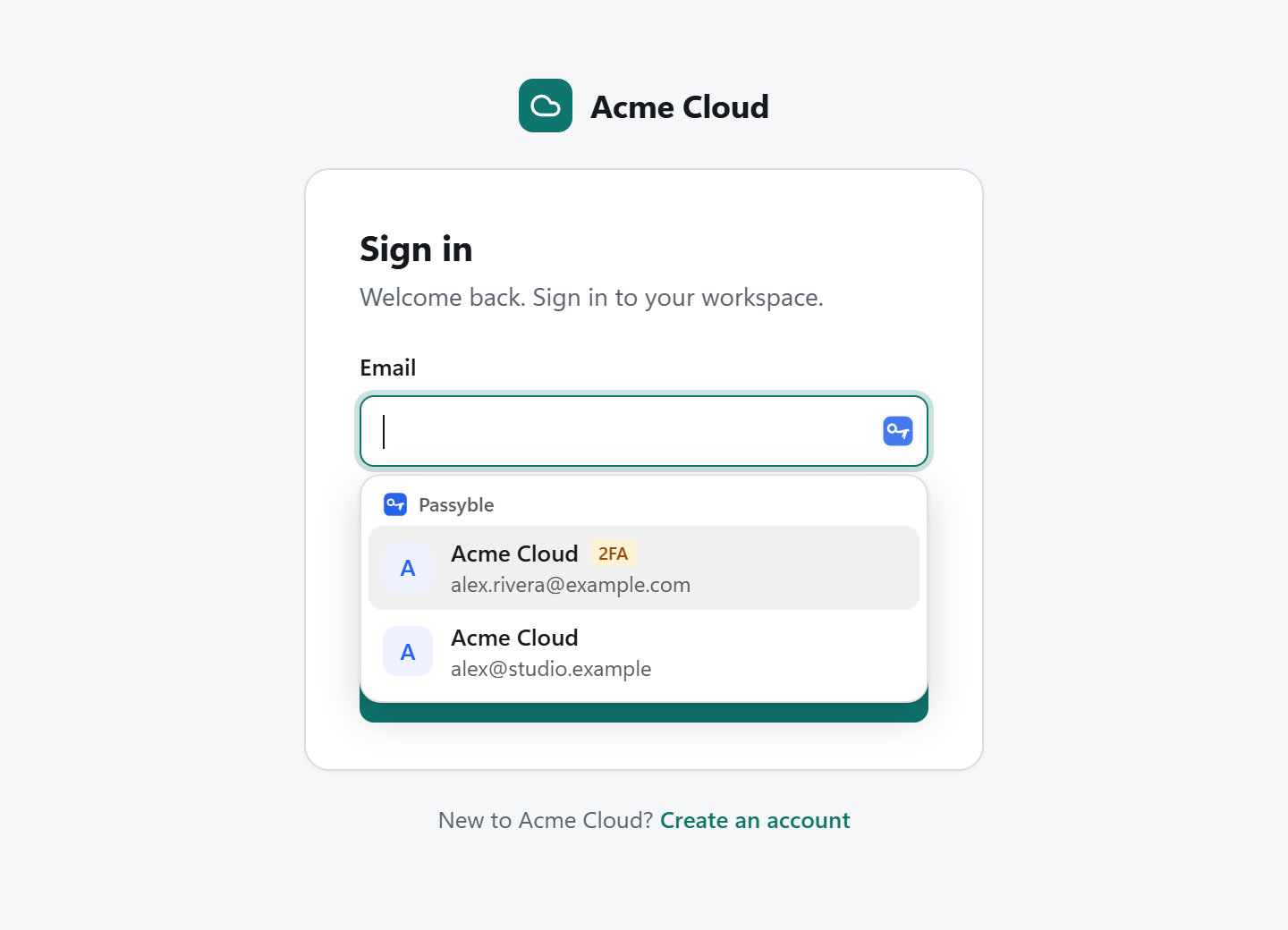
- On a sign-in page, click into the username or password field.
- Passyble lists its logins for the site. Pick one and it fills the form.
- If the login has a 2FA code, Passyble fills it on the next page, or shows it in a small popup to copy.
Or click the Passyble icon in the toolbar to see the site's logins, search your vault, and copy a username, password or 2FA code.
When the vault is locked, the extension asks you to unlock first, with Windows Hello or your master password.
Save a new login #
Sign in or sign up as usual. Passyble then asks Save login to Passyble?. Click Save, or Edit first to correct the username.
Use a strong password on sign-up #
On a sign-up or change-password form, Passyble suggests a generated password in the field. Accept it: it's saved even if the site then redirects you.
Cards and addresses #
Passyble offers your payment cards in checkout forms and your identities in address forms.
Windows apps: auto-type #
- Open the app's sign-in window and click into the username field.
- Press Ctrl+Alt+P.
- If exactly one login matches the app, Passyble types the username, Tab, the password and Enter. Otherwise a small list opens: pick a login and press Enter.
- If the login has 2FA, its code pops up next: click Type it.
To match an app every time, add windows: and its program name to the login's websites, for example windows:putty.exe. Change the keys in Settings → Autofill → Auto-type hotkey.
If an app runs as administrator, Windows doesn't let other apps type into it. Start Passyble the same way, or copy and paste instead.