
Add a 2FA secret on Windows #
- When you turn on two-factor sign-in on a site, it shows a QR code. Look next to it for the key as text (sites call it setup key or secret) and copy it.
- In Passyble, edit the site's login and paste the key into Two-factor secret (TOTP). A link starting with
otpauth://works too. - Passyble shows Valid. Current code and the code. Type that code on the site to finish.
In the browser extension's own editor, Scan QR on this page reads the QR code for you.
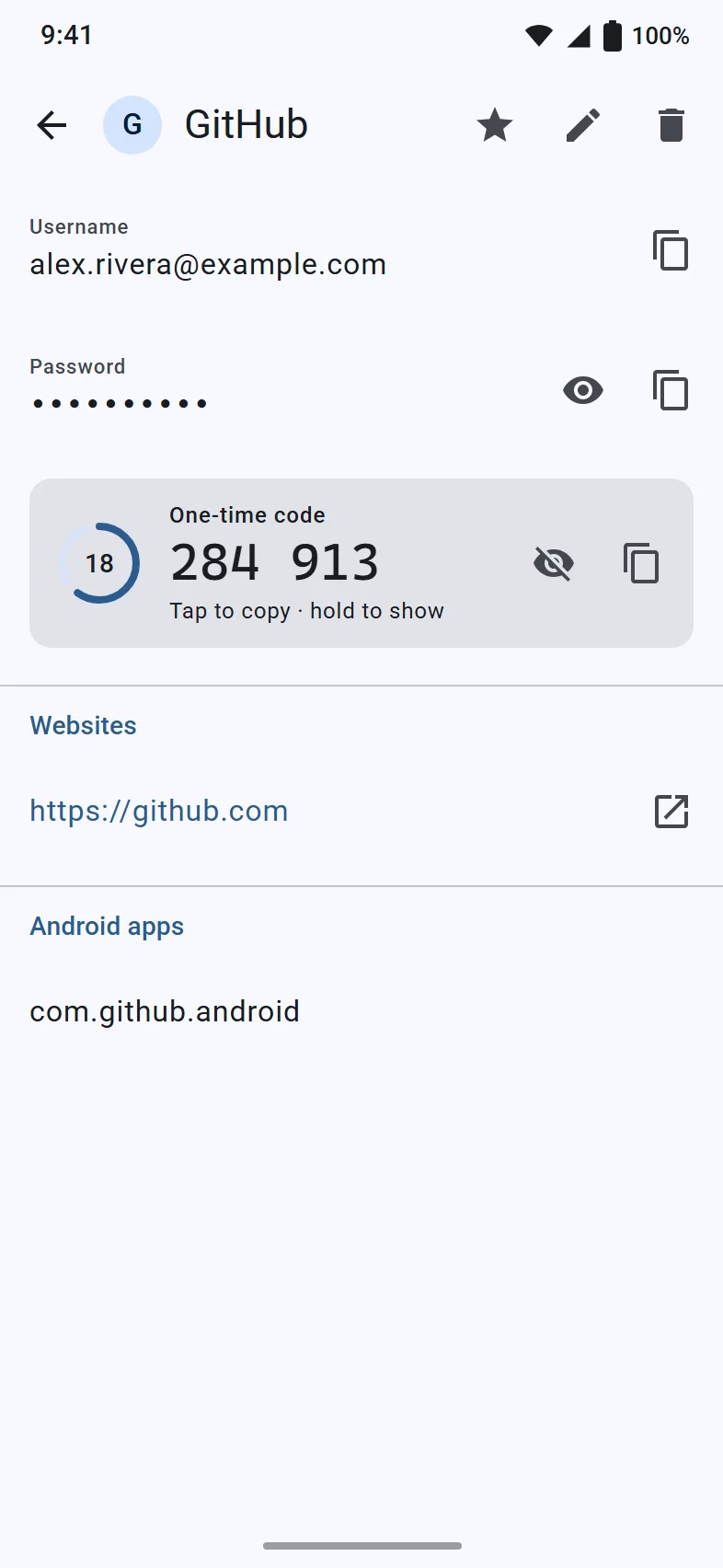
Add one on Android #
- Edit the login and go to One-time code (2FA) secret.
- Paste the setup key, or tap Scan QR code and point the camera at the code. The QR code is read on the phone itself.
Use the codes #
- Websites: the extension fills the code on the step after the password.
- Windows apps: after auto-type the code pops up in a small window: click Type it, or copy it.
- Android: Passyble fills the code right after the password when it can. Otherwise a notification shows the live code with Copy. The One-time code Quick Settings tile brings it back.
Moving from an authenticator app? #
Import its export file, or a screenshot of Google Authenticator's export QR code. Passyble can then merge codes into the logins they belong to. See Import from another password manager.